Show our lead screens inside your own app
Your menu on the left, our Leads, pixel install and more on the right, in an iframe. Your users sign in to your app only, your server opens each session, and nothing secret ever reaches the browser. Live in a day.
Three ways to integrate. This guide covers embedded screens.
Not sure it's the right one? Compare them below. For API only or a full white label, talk to us and we'll walk you through it.
| Compare | API only | Embedded screens This guide | Full white label |
|---|---|---|---|
| Where users work | Your own screens | Your app, our screens in a frame | reveal.yourdomain.com |
| Who signs users in | You | You (we never see their password) | Our sign-in, your brand |
| You build | Leads list, pixel install, settings | One server endpoint and an iframe | Your marketing site and billing |
| Billing your clients | Yours | Yours | Yours: your server calls our API on every payment |
| Time to launch | Weeks | A day | A few days (DNS + branding) |
How it works, step by step
Start with the one-time setup, then build the two scenarios. Click any row: it has everything you need, screenshots, code, cURL and Run. Your users only ever sign in to your app.
- 1
Put the screens on your own domain
Once, in your dashboardYour users must never see happierleads.com. The White label wizard puts the screens on two addresses of yours.
- Open Account settings → White label and click Start setup.
- Type a subdomain (e.g.
reveal) and your domain: the wizard sets upreveal.youragency.com(the screens) andrest-dash.youragency.com(the API). Fill in the sender details for system emails and click Save & continue. - The wizard shows the DNS records (two CNAMEs). Add them at your DNS provider exactly as shown. On Cloudflare, set Proxy status to DNS only (grey cloud), or the SSL certificate can't be issued.
- Click Verify DNS & continue (usually 5–30 minutes after adding the records) and finish the wizard.
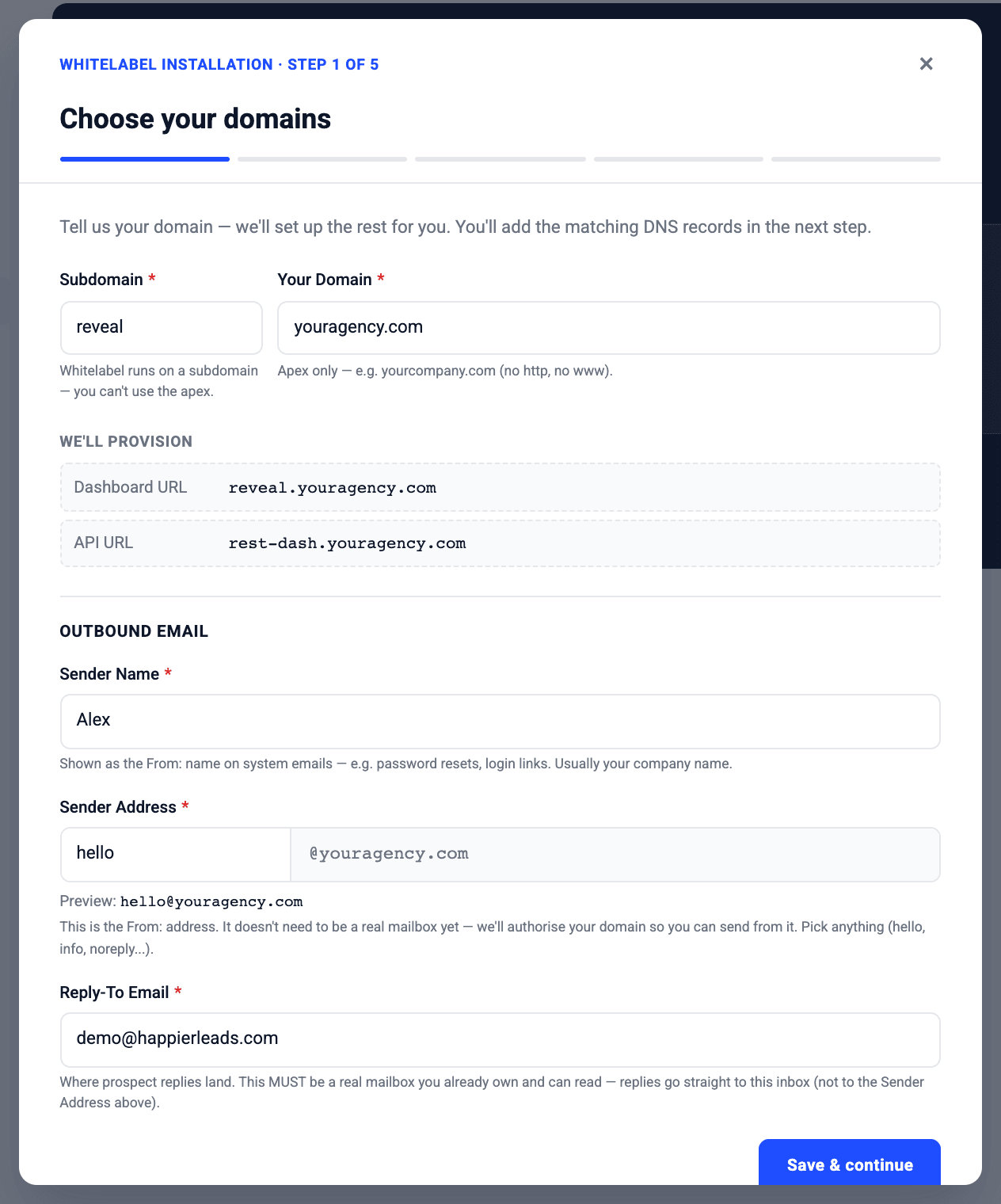
Pick your two addresses 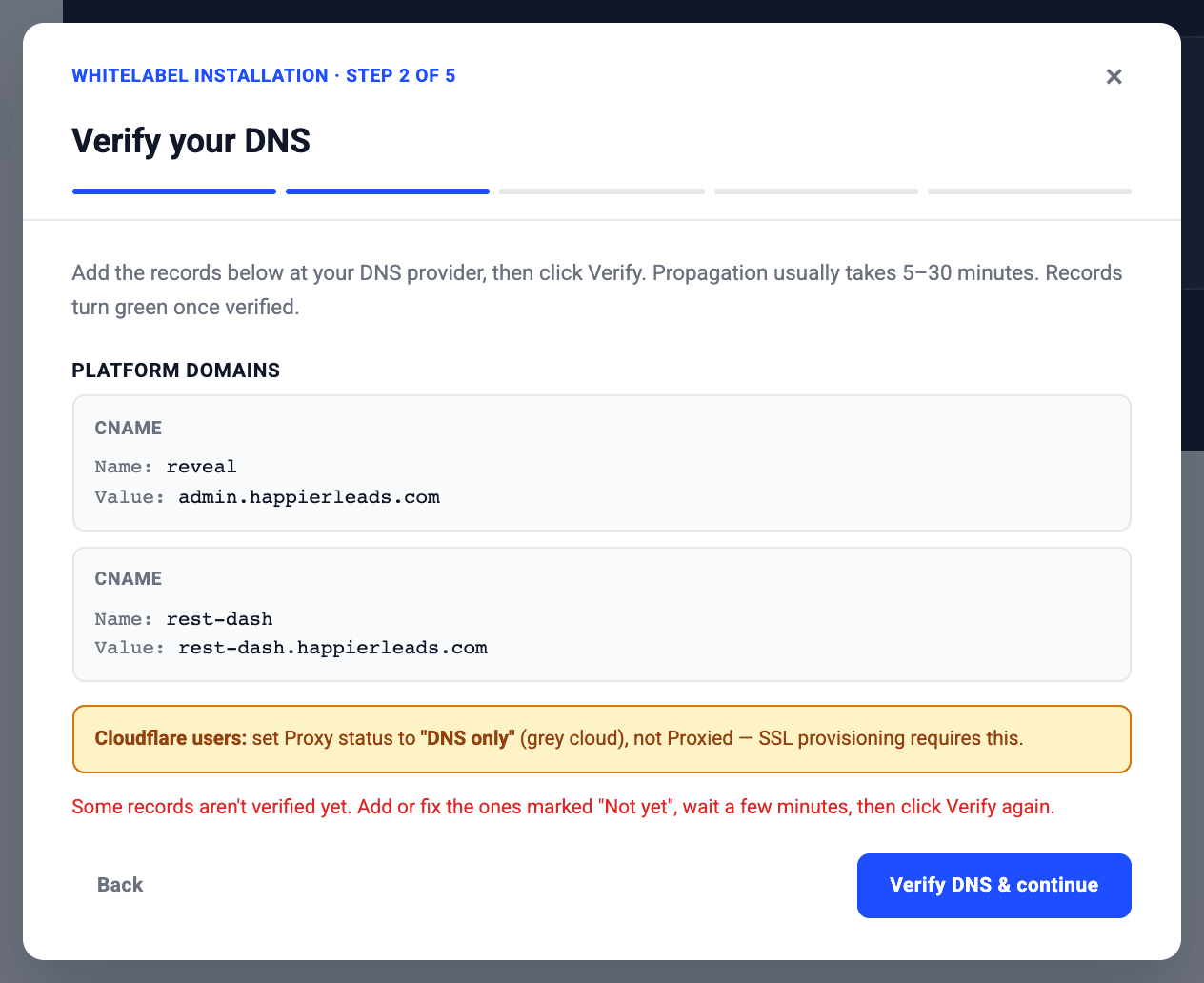
Add these DNS records, then Verify - 2
Switch embedding on and create your keys
Once, in your dashboard- Open Account settings → White label → Embed in your app and tick Allow my app to embed these screens.
- Add your app's address (e.g.
https://app.youragency.com) and click Save addresses. Any other site gets a blank frame. - Tick what your users see: tabs, parts of the Leads screen, extra screens.
- Set the Session length: how long a screen stays open before it needs a fresh link (1 week by default, 1 minute to 1 year).
- Under Server keys click Create key. It is shown once: store it on your server as
HL_EMBED_KEY. - Open Account settings → API Keys, create a master key and store it as
HL_MASTER_KEY. Both stay on your server, never in the browser.
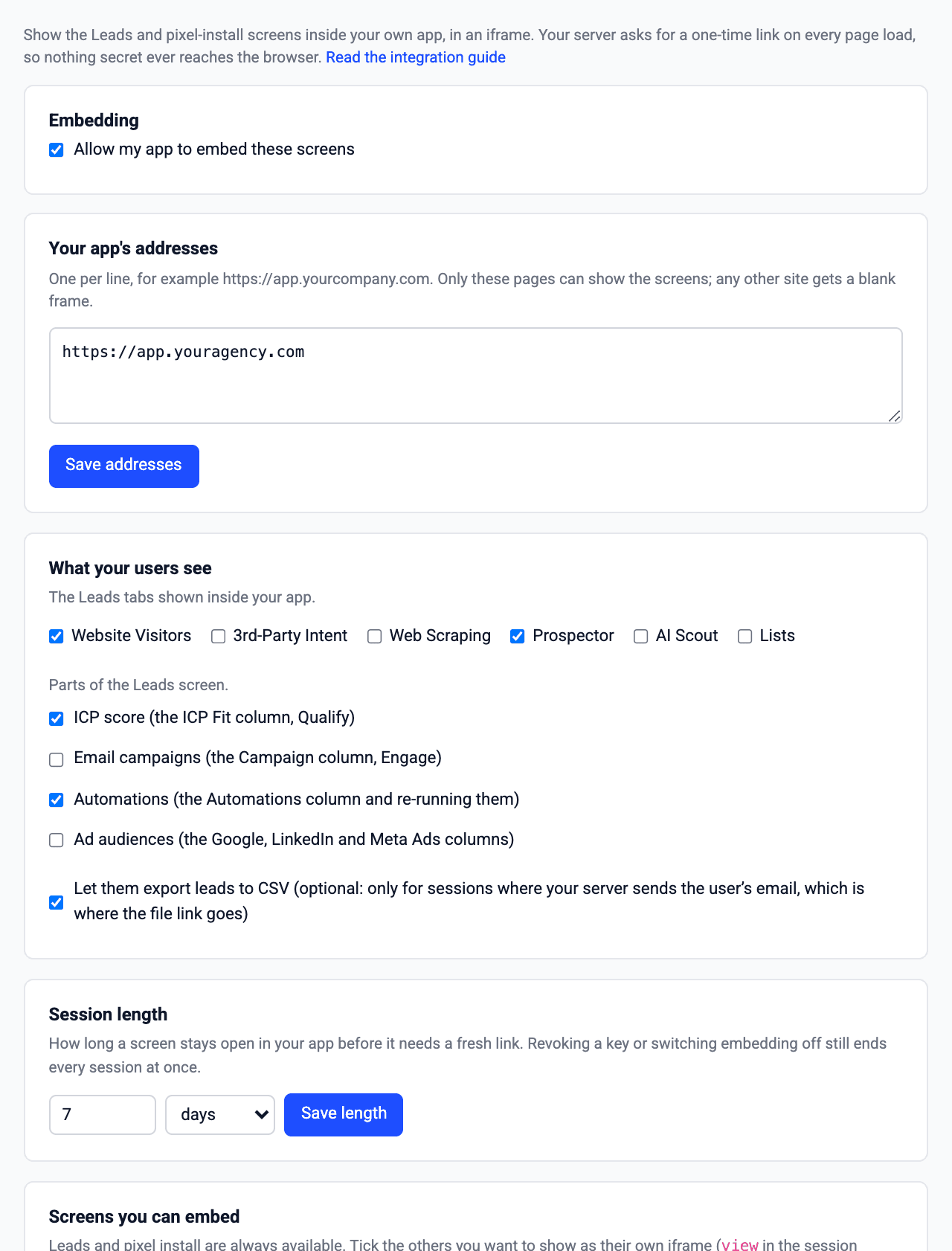
Account settings → White label → Embed in your app - 3
One-off: bring your existing clients across
Your server, once before launchPOST /admin/websitesset-limitstoggle-limitsClients who signed up before today have no website yet. Run this script once: it does for each of them what sign-up does (Scenario 1). It is safe to run again: clients that already have a
websiteIdare skipped.const API = 'https://rest-dash.happierleads.com'; const key = `privateKey=${process.env.HL_MASTER_KEY}`; const call = async (method, path, body) => { const r = await fetch(`${API}${path}?${key}`, { method, headers: { 'Content-Type': 'application/json' }, body: JSON.stringify(body) }); if (!r.ok) throw new Error(`${method} ${path} → ${r.status} ${await r.text()}`); return r.json(); }; const companies = await db.companies.find({ happierleadsWebsiteId: null }); // your own query for (const c of companies) { try { const { websiteId } = await call('POST', '/admin/websites', { name: c.name, domain: c.domain || '' }); await db.companies.update(c.id, { happierleadsWebsiteId: websiteId }); // save first, then limits await call('PUT', `/admin/websites/set-limits/${websiteId}`, { credits: c.plan.leads, emailAccounts: 2 }); await call('PUT', `/admin/websites/toggle-limits/${websiteId}`, c.isPaying ? { trialEnabled: false, activeWebsite: true, enableWebsiteLimits: true, refreshOnDate: c.renewsAt } : { trialEnabled: true, trialExpireDate: c.trialEndsAt, enableWebsiteLimits: true }); console.log('ok', c.id, websiteId); } catch (e) { console.error('FAILED', c.id, e.message); } // run again to retry await new Promise((r) => setTimeout(r, 300)); // gentle on the API } - 4
When a client signs up: create their website
Your server, in your sign-up codePOST /admin/websitesset-limitstoggle-limitsRight after you create the client's company. The domain can be empty (the install screen asks for it).
Save the websiteId in your own database. Store thewebsiteIdyou get back on your own customer record (e.g.company.happierleadsWebsiteId). It is how you know which website to call for which customer later: limits, trial, paid, cancel, and the one-time link every time they open the page.curl -X POST "https://rest-dash.happierleads.com/admin/websites?privateKey=$HL_MASTER_KEY" \ -H "Content-Type: application/json" -d '{ "name": "Acme Ltd", "domain": "acme.com" }' # 201 { "websiteId": "6acf…b384" } ← save it on the company curl -X PUT "https://rest-dash.happierleads.com/admin/websites/set-limits/$WEBSITE_ID?privateKey=$HL_MASTER_KEY" \ -H "Content-Type: application/json" -d '{ "credits": 500, "emailAccounts": 2 }' curl -X PUT "https://rest-dash.happierleads.com/admin/websites/toggle-limits/$WEBSITE_ID?privateKey=$HL_MASTER_KEY" \ -H "Content-Type: application/json" \ -d '{ "trialEnabled": true, "trialExpireDate": "2026-11-01T23:59:59.000Z", "enableWebsiteLimits": true }' - 5
Trial, paid, renewal, cancel: their leads
Your server, in your billing webhookset-limitstoggle-limitsPick the use case. Each one shows the API calls on the left and the same action in your dashboard on the right.
- 6
When a client opens the page: ask for a one-time link
Your server, a new endpointPOST /v3/embed/sessionsYour page calls this endpoint every time it shows the screen. Check your user is signed in, then ask for a link for their website and the screen to show (
view:auto,leads,install, or an extra screen you ticked).autoopens the install screen until their pixel works, then their leads.scope: "account"opens the admin view of every website: your own staff only.No personal data needed. Send only thewebsiteIdand the screen: we never need your users' names or emails. Only if you switch on CSV export in Embed settings (One-time setup) can you adduser: { email }to a session; the file link is emailed there. Without it, the Export button is hidden.app.get('/api/leads-embed', requireLogin, async (req, res) => { const admin = req.user.isStaff; // your rule: who may see every website const r = await fetch('https://rest-dash.happierleads.com/v3/embed/sessions', { method: 'POST', headers: { Authorization: `Bearer ${process.env.HL_EMBED_KEY}`, 'Content-Type': 'application/json' }, body: JSON.stringify(admin ? { scope: 'account' } : { websiteId: req.user.company.happierleadsWebsiteId, view: req.query.view || 'auto' }), }); if (!r.ok) return res.status(502).json({ error: 'Could not open the leads screen' }); res.set('Cache-Control', 'no-store').json({ url: (await r.json()).url }); // works once, 60 seconds }); - 7
Show it in an iframe
Your pageOne iframe per screen, each behind its own menu item. Ask your endpoint for a fresh link every time the page opens, put it in the iframe, done.
<iframe id="hl" title="Leads" style="width:100%;height:100%;border:0"></iframe>
<script>
  fetch('/api/leads-embed?view=auto')
    .then((r) => r.json())
    .then(({ url }) => { document.getElementById('hl').src = url; });
</script>
Your users never see our name: the screen comes from your domain (One-time setup), and the frame's messages carry no brand. Keep our name out of your own routes and titles too. A session stays open for 1 week by default; you choose the length in Embed settings, from 1 minute to 1 year. Opening the page again always gets a fresh one.
Try it
Pick a use case. The frame on the right is exactly what your users see (our read-only demo account; pixel checks are simulated, so any domain works).
What runs on your server, what runs in the browser
A key in a web page can be read by anyone who opens it. So keys only ever live on your server, and the browser only ever gets a link that works once.
Your server only
- Master API key
master-priv-…acts as the account Owner. - Embed key
hle_…can only open embedded sessions. - Creating, changing and deleting websites, setting leads and trials.
- Asking for the one-time embed link, after your own sign-in check.
Safe in the browser
- The tracking pixel snippet: it only carries the website's public id.
- The one-time embed link: it works once, within 60 seconds.
- The messages the frame sends your page:
ready,session-ended…
Never
- A key in front-end code, a mobile app or a public repository.
DELETE /admin/websites/:id(or any write) from the browser: proxy it through your server after your own permission check.- One login shared between clients: one website and one client view each.
Try the API
Pick a call, change the request and press Send. Signed out, you see a sample response. Signed in, the call runs for real on your account with a one-hour token that only works here, kept in this page's memory (refresh and it's gone). Calls marked server only are never sent from a browser, even here.
Sign in at the top (or use the demo account) to run these calls for real.
Let Claude build it
Paste this into Claude (or any AI coding assistant) inside your app's code base. It builds every step on this page, the one-off migration included, and keeps a checklist file so nothing gets forgotten: the dashboard steps it asks you to confirm.
Frequently Asked Questions
What is the Happierleads API?
A REST API that lets you integrate website visitor identification data into your own SaaS platform, CRM, or marketing tool — white-label, under your own branding.
Who is the Happierleads API for?
SaaS platforms, marketing tools, CRM vendors, and agencies who want to embed visitor intelligence without building the technology from scratch. Perfect for white-label and OEM use cases.
What data does the API return?
Company name, industry, size, and employee count. Where available: individual name, job title, email, phone, and LinkedIn profile — across 174+ countries.
Is there API documentation available?
Yes. Full API documentation, code samples, and webhook guides are included with your API partner setup. Contact us via the form on this page to get access.
How is API access priced?
API access is included on every plan. To offer it under your own brand, see white label (OEM).